

If you’re still using dropdowns for product variations, you’re leaving conversions on the table.
Modern WooCommerce stores are moving toward visual selection experiences – and that’s exactly where woocommerce image variation swatches come in.
Instead of forcing users to read text options like Nike or Adidas, you can show clickable images. This creates a faster, cleaner, and more engaging buying journey.
In this complete guide, you’ll learn how to set up woocommerce image variation swatches from scratch, along with advanced strategies, SEO benefits, and real-world best practices used by high-converting stores.
Why WooCommerce Image Variation Swatches Matter
Let’s address the core problem first.
Default WooCommerce variation dropdowns:
- Hide important product options
- Require extra clicks
- Reduce clarity
- Slow down decision making
Now compare that with woocommerce image variation swatches:
- Visual selection (instant understanding)
- Fewer clicks
- Better UX
- Higher conversions
This is why tools like woocommerce variation swatches images and woocommerce attribute images & variation swatches are becoming standard in serious eCommerce setups.
If your product has visual differences, using woocommerce image variation swatches is no longer optional – it’s essential.
What Are WooCommerce Image Variation Swatches?
WooCommerce image variation swatches allow you to replace dropdown fields with image-based options. Instead of text-based attribute selection, you get clickable image swatches
These can represent:
- Brands
- Styles
- Product variations
- Designs
- Patterns
Many advanced solutions like smart variations images & swatches for woocommerce or wooswatches woocommerce color or image variation swatches expand this functionality even further.
Step 1: Install a Variation Swatches Plugin
To enable woocommerce image variation swatches, you’ll need a plugin.

Setup Steps:
- Go to WordPress Dashboard
- Navigate to Plugins → Add New
- Search for Variation Swatches for WooCommerce
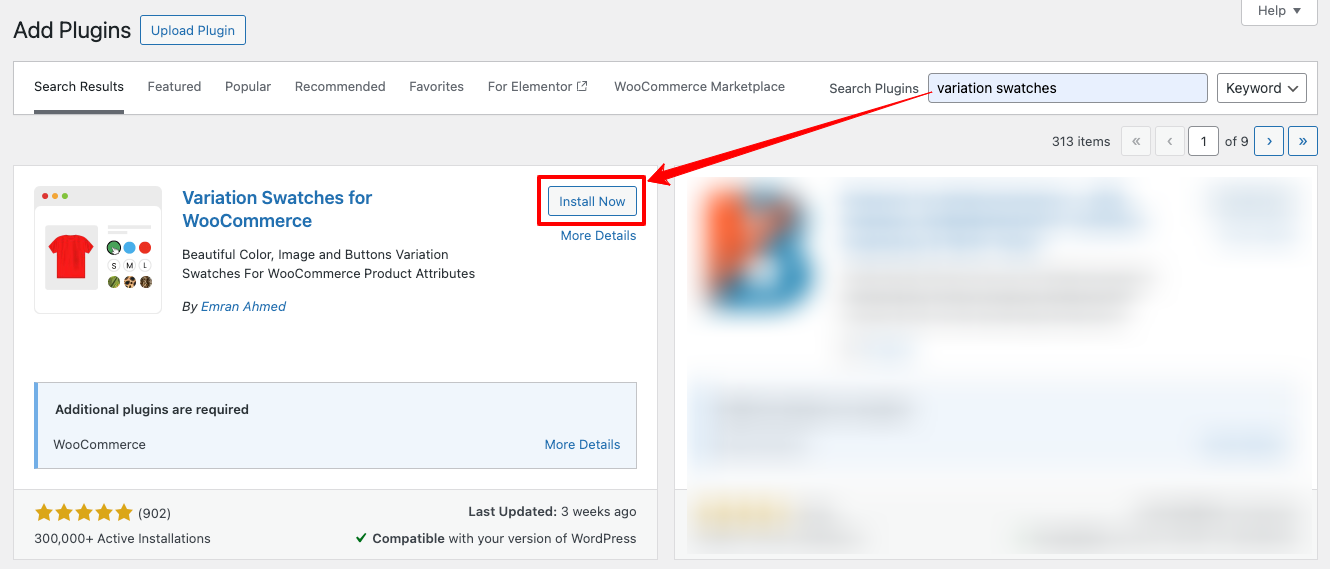
- Look for the plugin by Imran Ahmed
- Click Install Now
- Click Activate
This plugin ecosystem (including tools like woocommerce color or image variation swatches) is widely trusted and used by thousands of stores.
Step 2: Understand Attributes (The Foundation)
Before creating woocommerce image variation swatches, you must understand how attributes work in WooCommerce. There are two types of attributes:

- Global : Global attributes are the recommended approach because they are created once, reusable across multiple products, and highly scalable for growing stores.
- Custom. On the other hand, custom attributes are created individually for each product, which means they are not reusable and quickly become inefficient as your catalog expands.
For any serious implementation of woocommerce attribute images & variation swatches, relying on global attributes is the most practical and future-proof choice.
Step 3: Create Image-Based Attribute
Now let’s create your first attribute for woocommerce image variation swatches.
Steps:
- Go to Products → Attributes
- Add attribute name (Example: Brand)
- Select Image type
- Click add attribute
This is the foundation of woocommerce variation swatches images.
Step 4: Add Image Variations
Click Configure Terms and add variations.
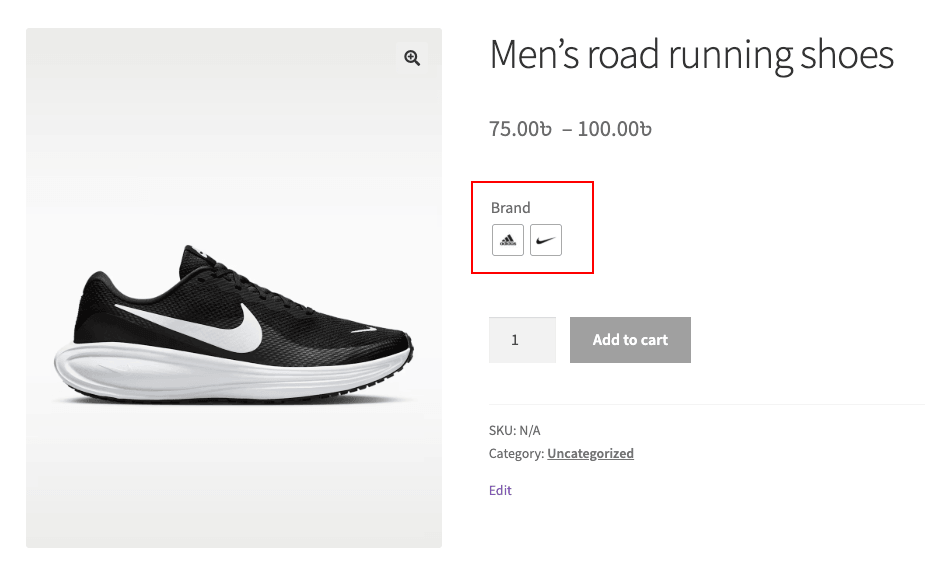
Example:
- Nike → Upload logo/image
- Adidas → Upload logo/image
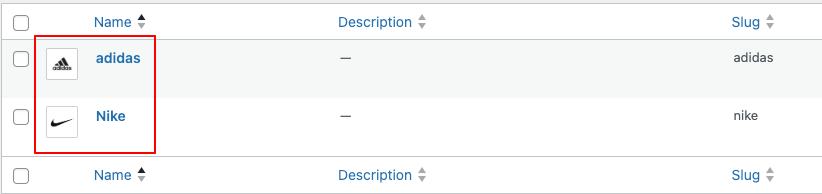
Now your woocommerce image variation swatches structure is ready.
This is exactly how tools like smart variations images & swatches for woocommerce internally manage variation visuals.
Step 5: Create Variable Product
Now assign attributes to a product.
Steps:
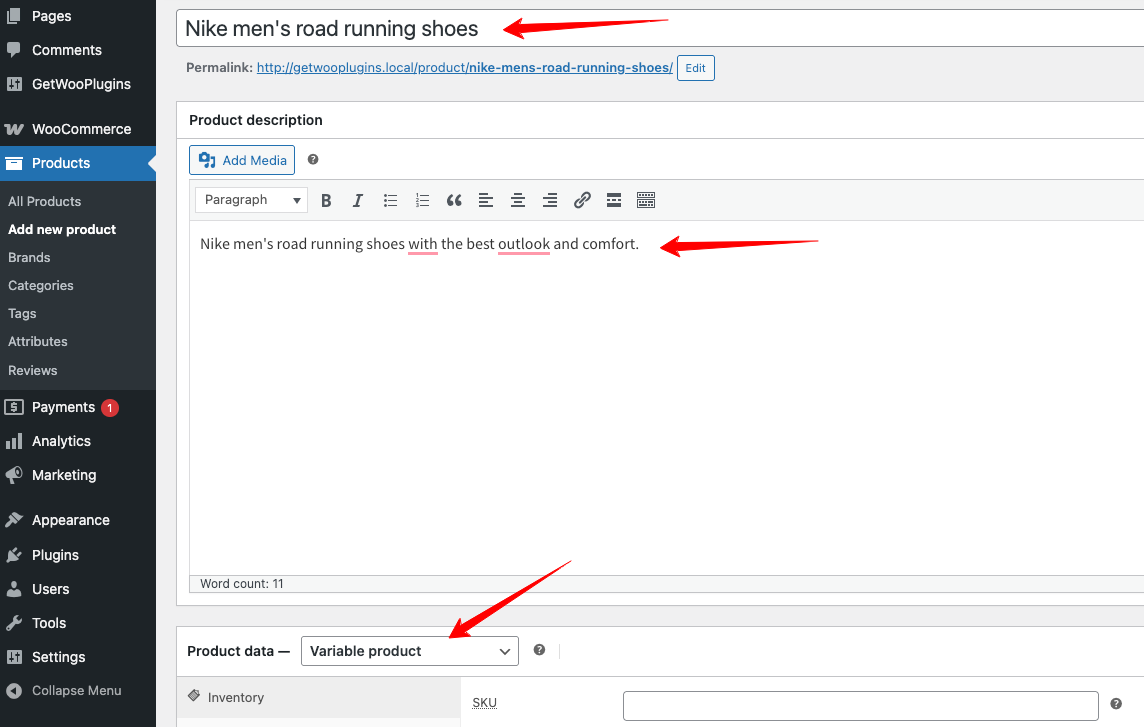
- Go to Products → Add New
- Add product details
- Select Variable Product
Step 6: Assign Attribute to Product
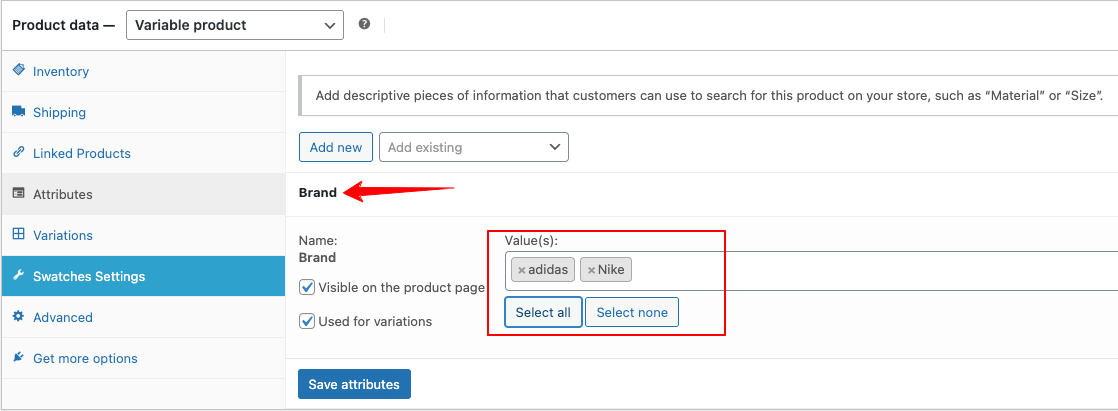
- Go to Attributes tab
- Select your attribute
- Click Add
- Click Select All
- Enable Used for Variations
- Save
Now your woocommerce image variation swatches are connected to the product.
Step 7: Generate Variations
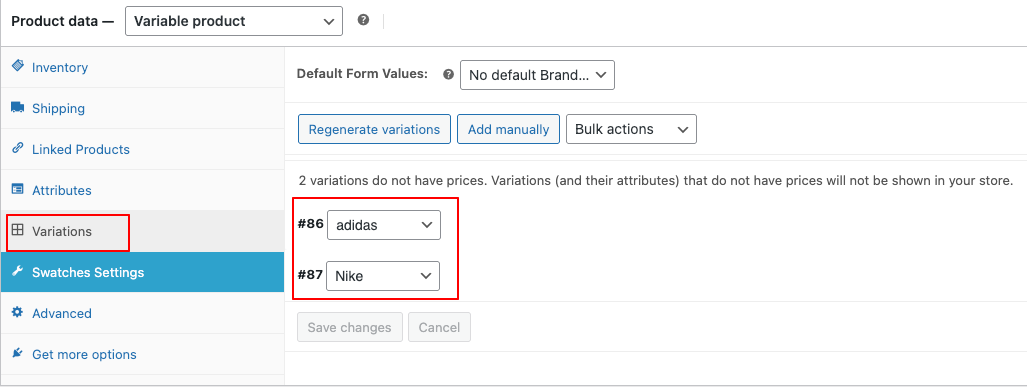
- Go to Variations tab
- Select Create variations from all attributes
- Confirm
WooCommerce will automatically generate variations.
Step 8: Set Price (Critical Step)
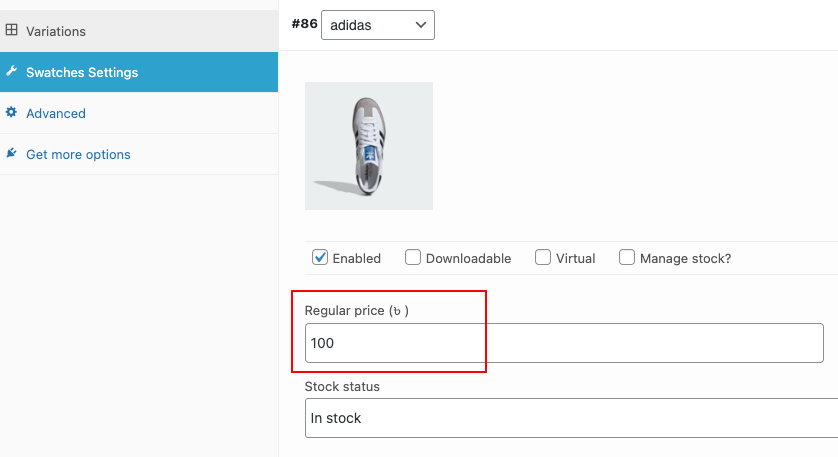
Without pricing variations won’t show and the product becomes unusable. Always assign prices to each variation.
Step 9: Add Variation Images
This is where woocommerce image variation swatches shine.
Assign images to each variation:
Nike → Nike product image
Adidas → Adidas product image
Now when users click a swatch, product image changes instantly This is the core behavior of woocommerce variation swatches images.
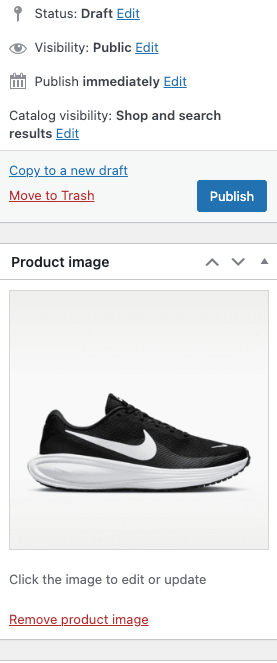
Step 10: Publish Product
Add a main product image and publish. Now visit the frontend.
You’ll see:
- Image-based swatches
- Clickable variations
- Dynamic product images
Your woocommerce image variation swatches setup is complete.
Showing Image Swatches on Shop Page
By default, woocommerce image variation swatches appear only on product pages.
To display them on shop page or category page, you’ll need premium functionality (often included in tools like woocommerce variation swatches pro).
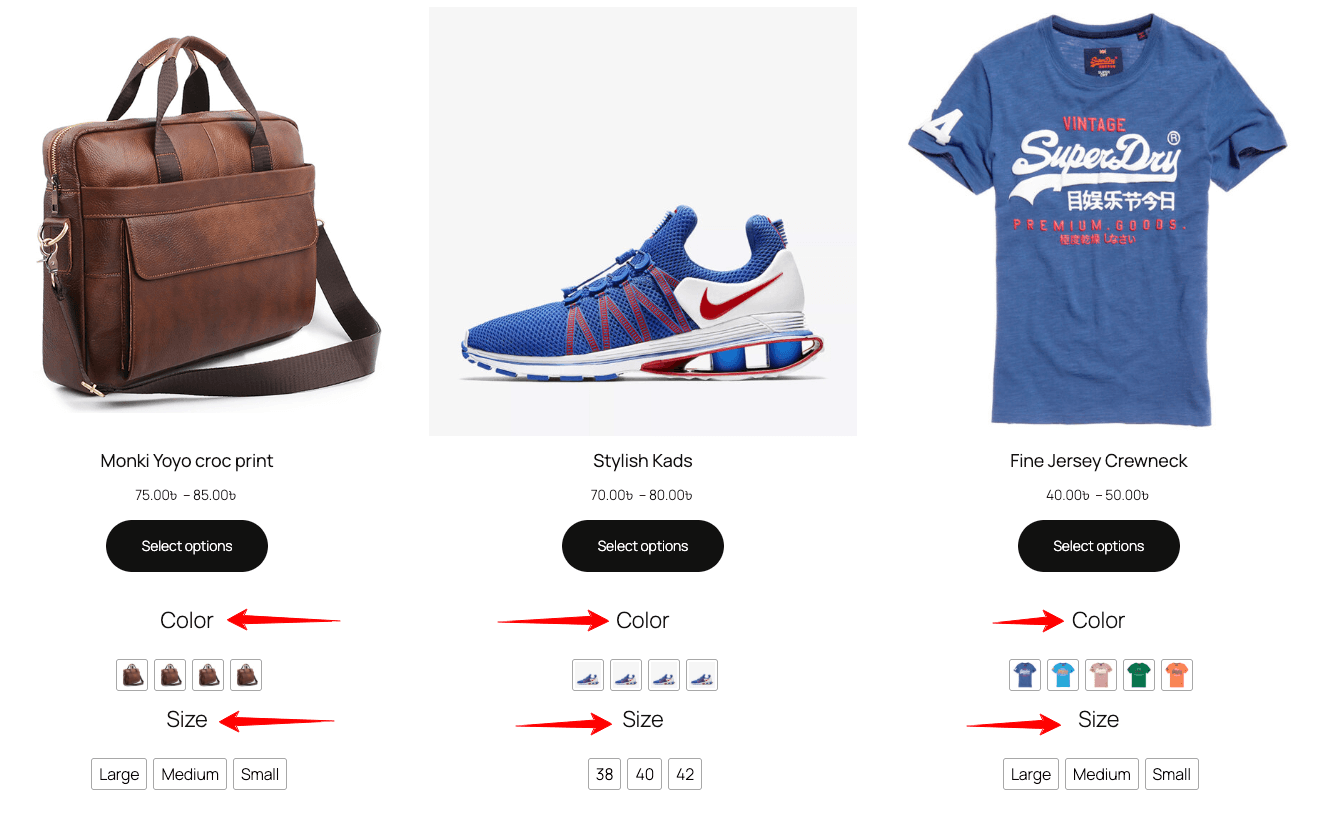
This significantly improves browsing experience, conversion rate, click-through rate and advanced Optimization Strategies.
Now let’s go beyond basic setup.
Combine Color + Image Swatches
High-performing stores use color swatches and image swatches together. This is often referred to as woocommerce color or image variation swatches.
Example:
- Color → Red / Blue
- Brand → Nike / Adidas
This layered UX increases clarity.
Optimize Image Quality
For effective woocommerce image variation swatches:
- Use consistent size
- Optimize images
- Avoid blurry visuals
Mobile Optimization
Most WooCommerce traffic is mobile.
Ensure:
- Swatches are tappable
- Proper spacing
- Fast loading
SEO Benefits of WooCommerce Image Variation Swatches
While woocommerce image variation swatches are mainly UX-focused, they have indirect SEO impact. They improve: engagement, time on page, interaction rate and conversion signals.
These contribute to better rankings over time.
When Should You Use Image Swatches?
Use woocommerce image variation swatches when visual differences exist, branding matters, product design varies
Avoid when no visual difference or simple products.
Implementing woocommerce image variation swatches is one of the smartest UX upgrades you can make. You’re not just improving design. You’re improving decision speed, product clarity and conversion rate.
And with tools like smart variations images & swatches for woocommerce, woocommerce attribute images & variation swatches, and wooswatches woocommerce color or image variation swatches, the process is easier than ever.
If your goal is serious WooCommerce growth, this is a must-have feature.
FAQs About WooCommerce Image Variation Swatches
What are WooCommerce image variation swatches?
WooCommerce image variation swatches replace dropdowns with clickable images, allowing users to visually select product variations like brand or style.
Can I use both color and image swatches together?
Yes, using woocommerce color or image variation swatches together is a powerful strategy that improves UX and helps users make faster decisions.
Why are my variation swatches not showing?
Common reasons:
- No price assigned
- Attribute not marked “Used for variations”
- Incorrect attribute setup
Do image swatches work on shop pages?
By default, no. You need premium features (like those in wooswatches woocommerce color or image variation swatches) to display them on shop pages.
Are WooCommerce image variation swatches good for SEO?
Indirectly, yes. They improve user engagement, which positively impacts SEO signals.
Which attribute type should I use?
Always use global attributes for scalable woocommerce image variation swatches implementation.
![Top 10+ Best WooCommerce Product Gallery Slider Plugins [2026]](https://cdn.storepress.com/wp-media/2026/08/WooCommerce-Product-Gallery-Slider-Plugins.webp)