

If you’re running a WooCommerce store, product variations play a crucial role in improving user experience and conversions. Customers don’t like dropdowns when selecting colors, sizes, or styles. They prefer visual options – something they can see and click instantly.
That’s where color variation swatches in WooCommerce come in.
In this blog, you’ll learn how to create WooCommerce color variation swatches from scratch using a plugin. The process is beginner-friendly, and you don’t need any coding knowledge.
By the end of this guide, you’ll be able to:
- Create global attributes in WooCommerce
- Add color variations like red, green, and blue
- Display color swatches on product pages
- Improve UX and conversion rate
Let’s get started.
Why Use Global Attributes Instead of Custom Attributes?
Before we jump into the setup, let’s clear up a common technical hurdle. In WooCommerce, you can create attributes in two ways: Custom or Global.

- Custom Product Attributes: These are created inside a specific product page. The downside? You can’t reuse them. If you have 50 products that come in “Red,” you’d have to manually create that attribute 50 times.
- Global Attributes: You create these once in the WooCommerce settings and apply them to any product. This is the industry standard. It’s better for SEO, better for database management, and essential if you want to use filtering widgets on your shop page.
In this guide, we will focus on Global Attributes to ensure your site stays scalable and organized.
Step 1: Install the Variation Swatches Plugin
To get started, you need the right engine under the hood. First things first, grab the free plugin.

Follow these steps:
- Go to your WordPress dashboard
- Navigate to Plugins → Add New
- Search for Variation Swatches for WooCommerce
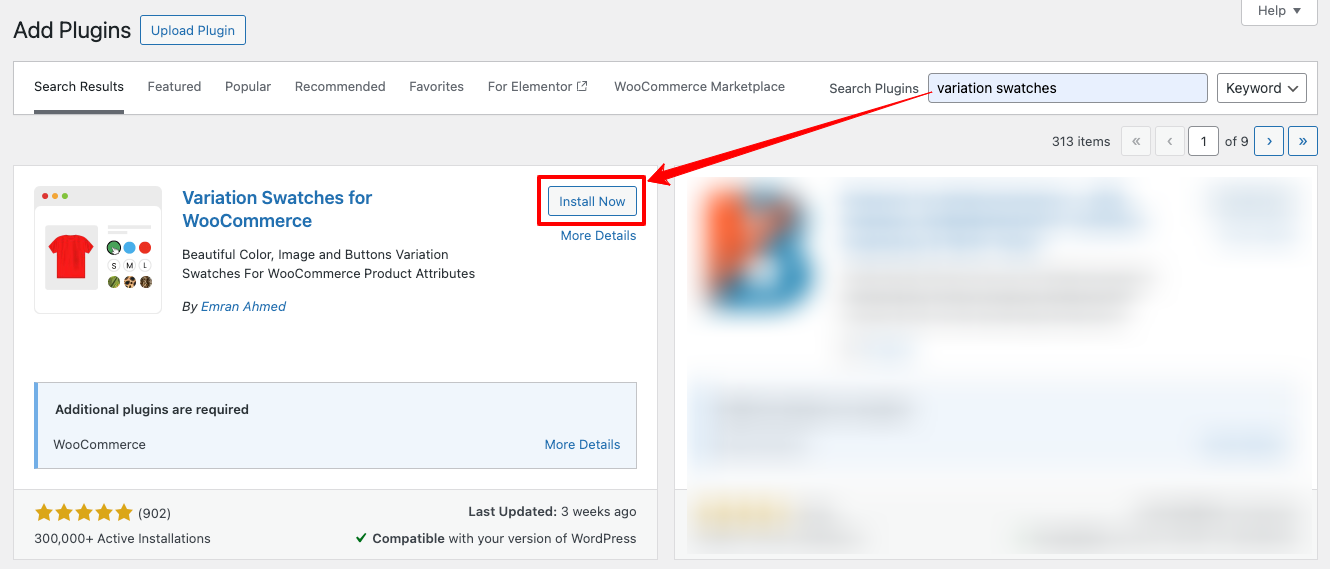
- Look for the plugin by Imran Ahmed
- Click Install Now
- Click Activate
Once activated, you’re ready to create color swatches.
This plugin is widely used in the WooCommerce ecosystem. It has 300,000+ active installations and strong user ratings. That makes it a reliable option for most WooCommerce stores.
Step 2: Create Your Global Color Attribute
Now, let’s build the foundation. We need to tell WooCommerce that “Color” is a specific type of data that should be displayed as a visual swatch.
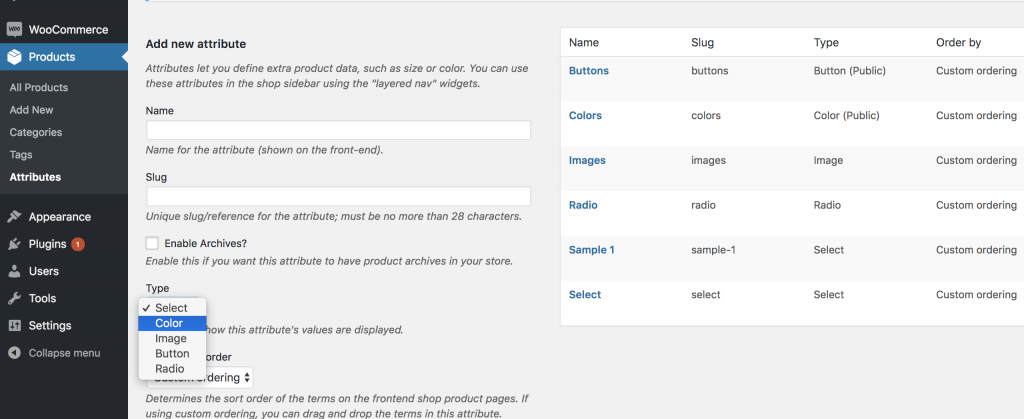
- Go to Products > Attributes.
- Name: Type “Color” (or whatever you prefer, like “Hue” or “Finish”).
- Slug: You can leave this blank; WordPress will generate it automatically.
- Enable Archives? Check this if you want to have a specific page for all products of a certain color.
- Type: This is the most important part. Since we installed the plugin, you will see a dropdown. Now select color.
- Click Add Attribute.
Your “Color” attribute is now live, but it’s currently empty. We need to define which colors we actually offer.
Step 3: Configure Color Terms (The Variations)
Think of the Attribute as a folder and the Terms as the files inside. Let’s add Red, Green, and Blue.
In the Attributes list, you’ll see your new “Color” row. Click on Configure terms.
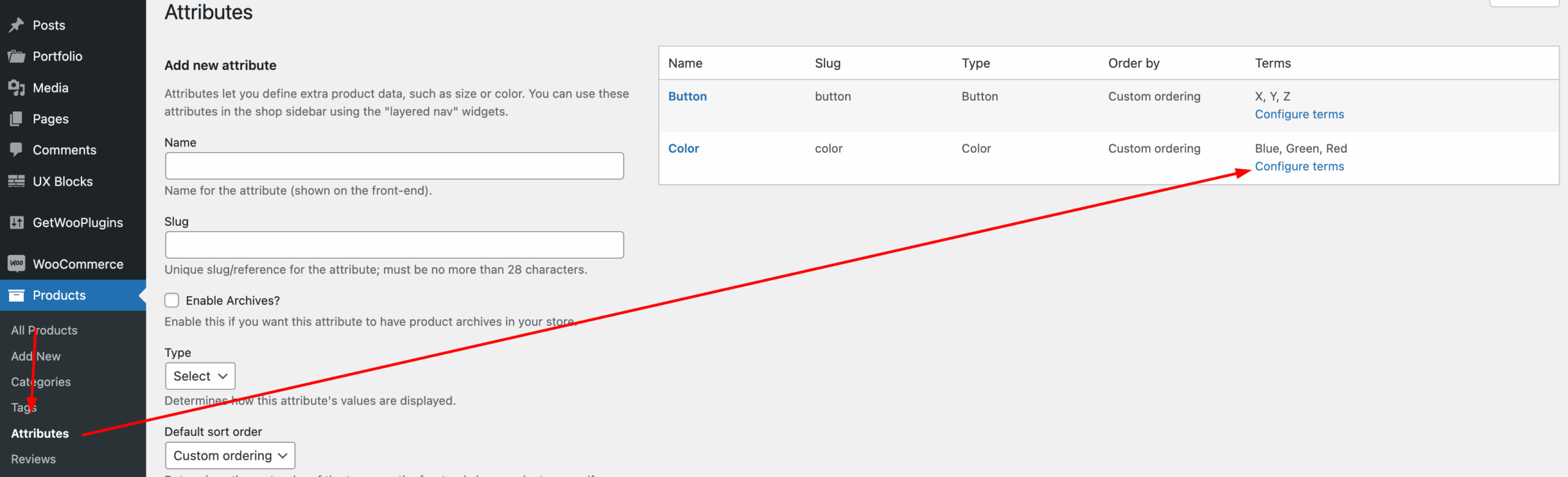
- Name: Type “Red.”
- Color Picker: Since we set the attribute type to “Color” in the previous step, a color picker will appear. Select your desired shade of red.
- Click Add New Color.
- Repeat this process for Green and Blue.
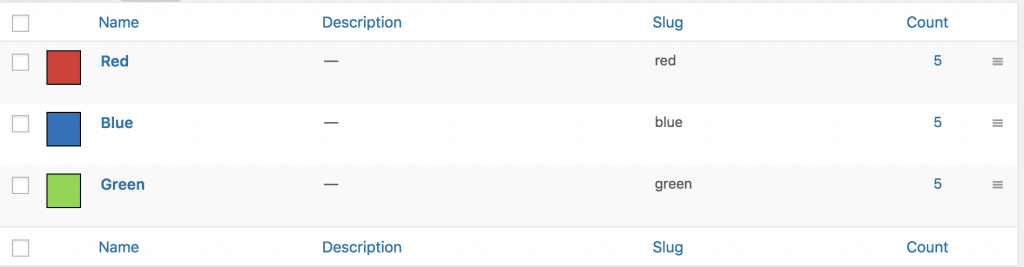
Pro Tip: If you have specific brand colors, you can paste the exact Hex code (e.g., #FF0000) into the color picker for 100% accuracy.
Step 4: Applying Swatches to a New Product
With our global attributes ready, it’s time to see them in action on a product page.
- Go to Products > Add New.
- Give your product a title and a description.
- Scroll down to the Product Data box and change the dropdown from Simple product to Variable product.
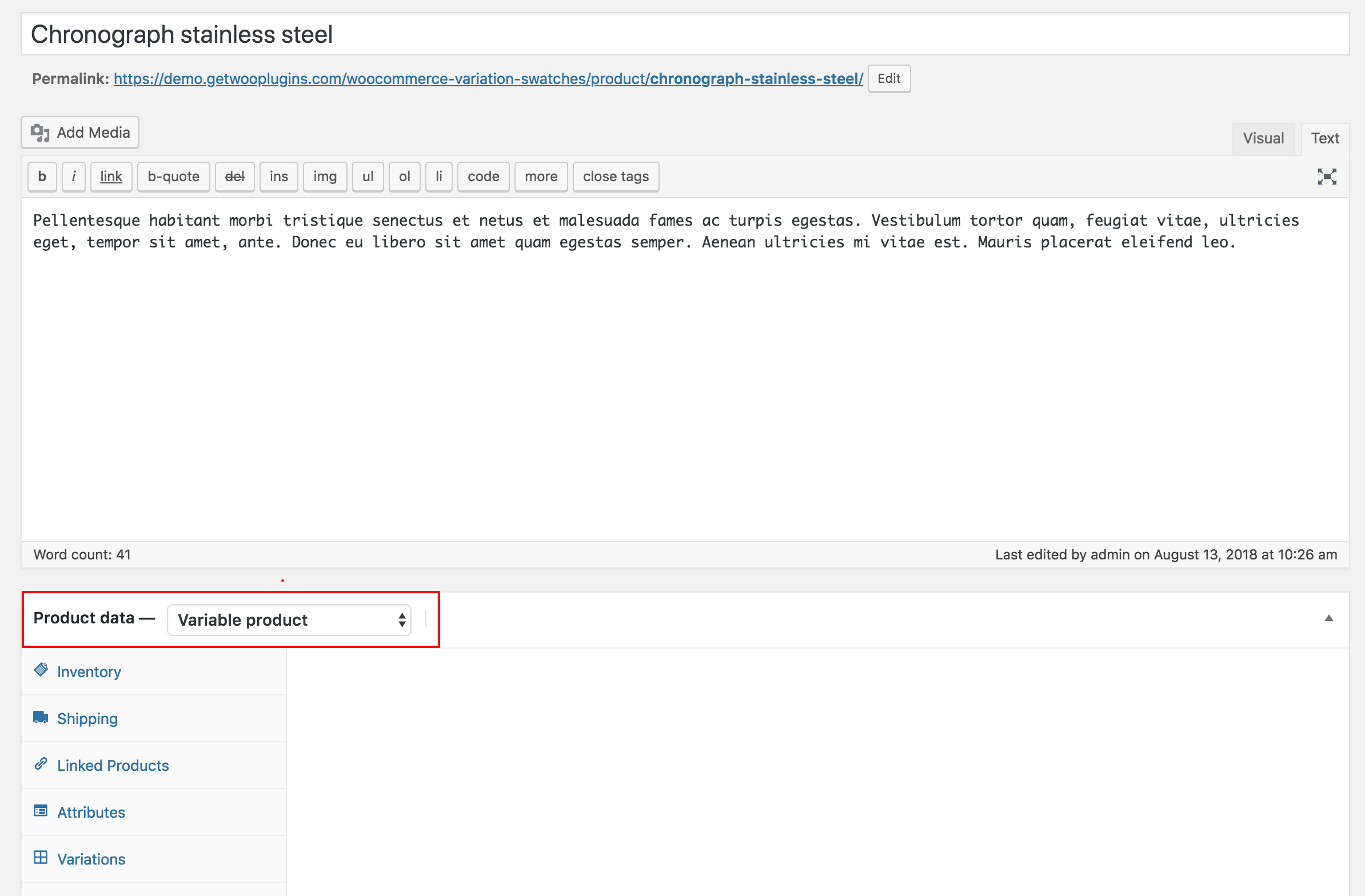
- Click on the Attributes tab.
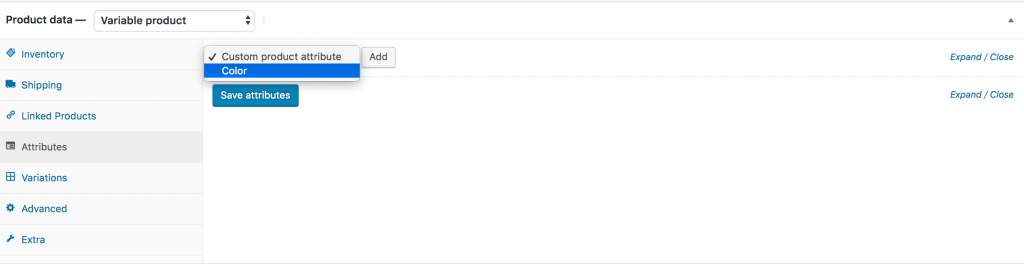
- In the “Custom product attribute” dropdown, select Color and click Add.
- Click Select all to bring in Red, Green, and Blue.
Crucial Step: Ensure the checkbox “Used for variations” is ticked. Without this, the swatches won’t appear on the front end.
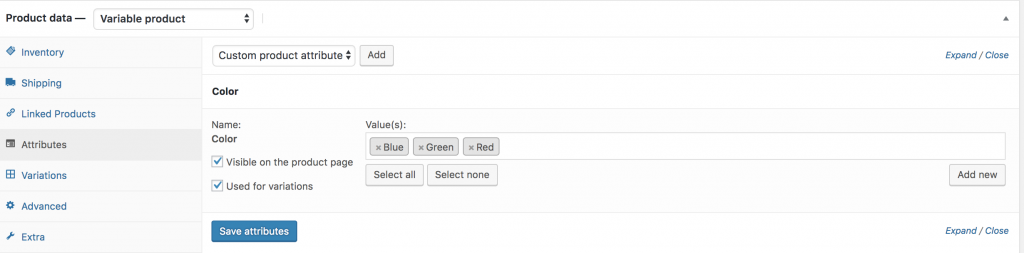
Hit the Save attributes button.
Step 5: Generating the Variations
Now we need to turn those attributes into actual purchasable options.
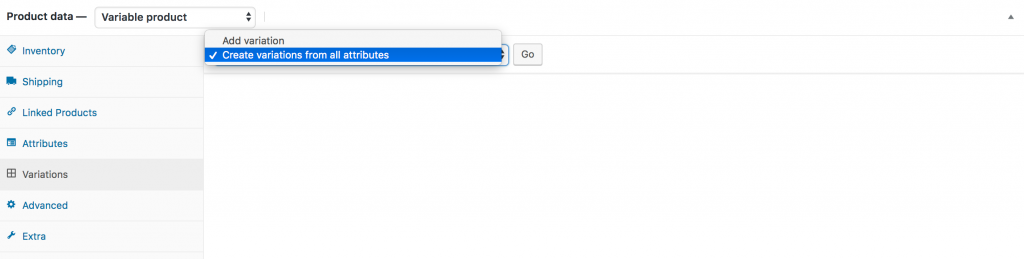
- Click on the Variations tab.
- Select Create variations from all attributes and click Go. WooCommerce will automatically generate three variations: Color Red, Color Green, and Color Blue.
- Set Your Prices: WooCommerce will not show a variation on your website unless it has a price. Expand each variation and enter the regular price.
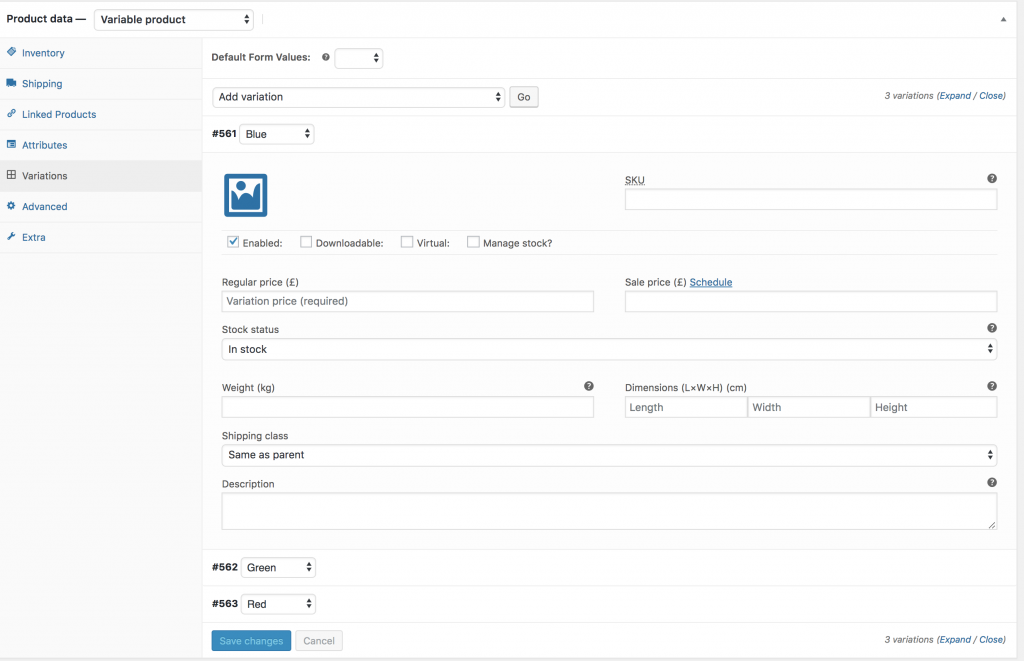
- Add Variation Images: This is where the magic happens. Click the image icon for the “Red” variation and upload a photo of your red product. Do the same for Green and Blue.
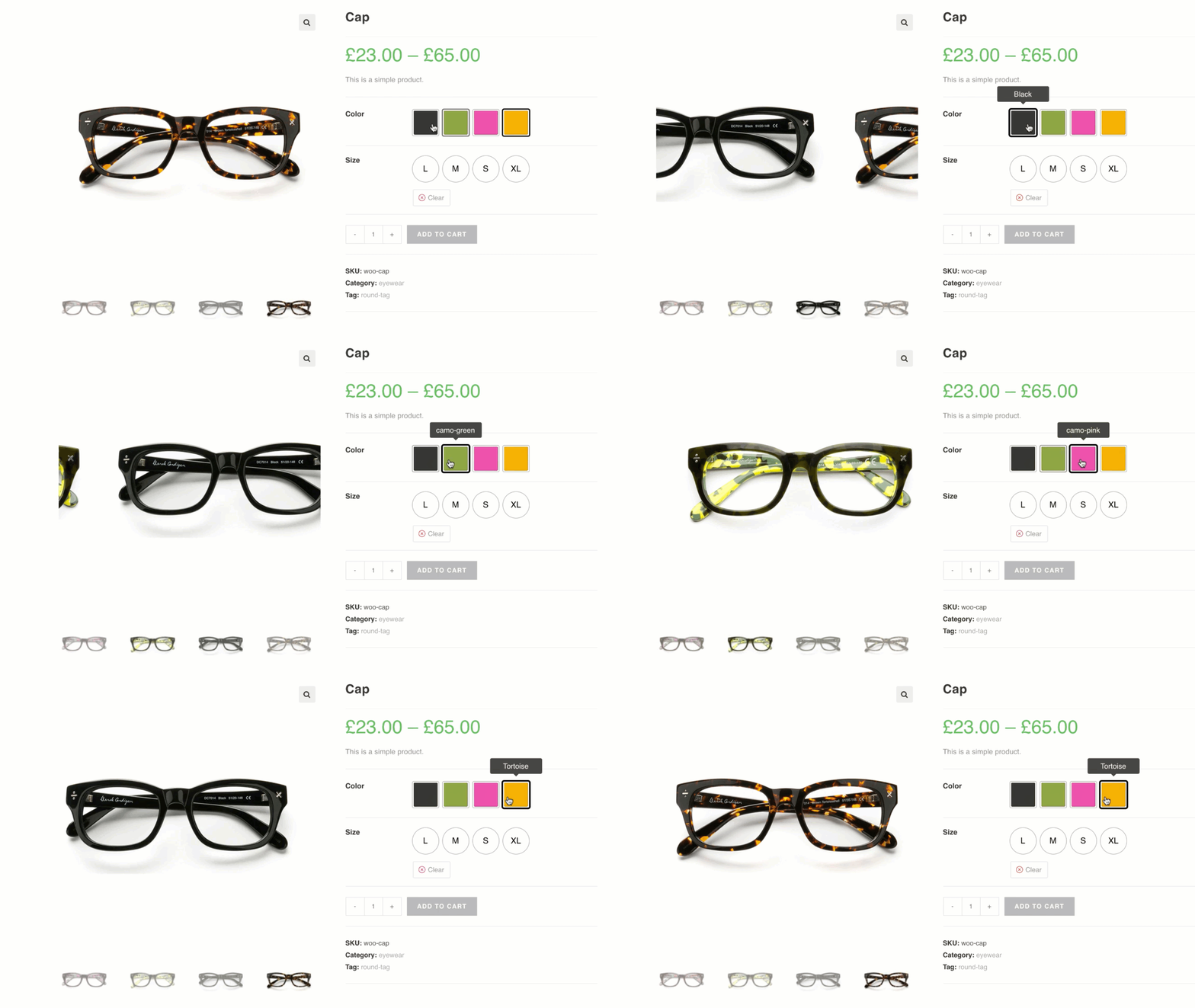
When a customer clicks the Red swatch, the main product image will now automatically swap to the Red photo. This is a massive conversion booster.
Step 6: Publish and Preview
Once you’ve set the prices and images, hit Publish.
Go to the front end of your site. Instead of a boring text dropdown, you should now see beautiful, circular color swatches. When you hover over them or click them, they respond instantly, providing a tactile feel to your digital store.
Level Up: Taking Swatches to the Shop Page
The blog above covers the single product page. But what if you want customers to see those color options while they are still browsing the Shop Page or Category Pages?
One effective way to improve product discovery is to show variation swatches on shop page, allowing customers to preview available options before opening the product page.
By default, the free version of most swatch plugins limits display to the product page. To show swatches on the archive/shop pages-allowing users to see color availability without clicking into every single product-you will need the Premium Version of Variation Swatches for WooCommerce.
The Premium version also unlocks:
- Image Swatches: Use actual fabric textures or patterns instead of solid colors.
- Dual-Color Swatches: Perfect for two-toned items.
- Tooltips: Show the color name when a user hovers over the swatch.
- Custom Styling: Change swatches from circles to squares or adjust the sizes to fit your theme’s aesthetic.
Frequently Asked Questions (FAQ)
1. Why are my swatches not showing up on the product page?
This is the most common issue, and it’s usually down to one of three things:
- Missing Price: WooCommerce will hide any variation that doesn’t have a price. Ensure every single variation (Red, Green, Blue) has a price set.
- “Used for Variations” Unchecked: In the Product Data > Attributes tab, make sure the “Used for variations” box is ticked for that specific attribute.
- Plugin Conflict: Sometimes your theme or another plugin might be overriding the swatches. Try switching to a default theme like Storefront to see if they appear.
2. Can I change the swatch shape from circles to squares?
Yes! You don’t need to be a coder to do this. Navigate to WooCommerce > Settings > Variation Swatches. Under the Styling or Visual tab, you can toggle between Rounded (Circle) and Square shapes. You can also adjust the width and height of the swatches to fit your brand’s look.
3. How do I show swatches on the Shop/ Category pages?
In the free version, swatches typically only appear on the single product page. To show them on your main Shop page (archive pages), you’ll need the Pro version. Once upgraded, you can enable “Show on Archive” in the plugin settings, allowing customers to see color options without leaving the gallery.
4. What happens if a specific color is out of stock?
The plugin has a built-in feature to handle this. You can choose to Blur, Cross out, or completely Hide swatches for variations that are out of stock. This prevents customer frustration by showing them what’s available before they even try to click “Add to Cart.”
Final Thoughts
In the competitive WooCommerce landscape, small details make the difference between a bounce and a sale. Adding color swatches is a low-effort, high-impact optimization. It reduces friction, improves visual communication, and makes your store look professional.
Ready to transform your store? Follow the steps above, and if you’re looking to dominate your niche, consider the premium features to give your shop page that extra edge.

![Top 10+ Best WooCommerce Product Gallery Slider Plugins [2026]](https://cdn.storepress.com/wp-media/2026/08/WooCommerce-Product-Gallery-Slider-Plugins.webp)